MS Excel DATEDIF function returns the difference between two date values, based on the given interval.
The DATEDIF function is a hidden built-in function in Excel that is categorized as a Date/Time Function. It can be used as other worksheet function of Excel, but user can’t get help of this function due to its hidden characteristics.
Note–DATEDIF is not a standard function and hence not a part of Excel functions library and so there is no documentation(help) for this. Excel provides the DATEDIF function in order to support older workbooks from Lotus 1-2-3. The DATEDIF function may calculate wrong results under certain scenarios.
Syntax
Following is syntax of the DATEDIF function:
DATEDIF( start_date, end_date, interval )
Parameters/Arguments
start_date and end_date- The two dates to calculate the difference between where the start_date can’t be greater than end_date. The Entered Date format should also match with your computer Date format,i.e. if your computer Date format is MM/DD/YYYY then you can’t type DD/MM/YYYY
Interval- The interval of time to use to calculate the difference between date1 and date2 is known as INTERVAL here. Below is a list of valid interval that can be used
| Interval | Description |
| Y | The number of complete years. |
| M | The number of complete months. |
| D | The number of days. |
| MD | The difference between the days (months and years are ignored). |
| YM | The difference between the months (days and years are ignored). |
| YD | The difference between the days (years and dates are ignored). |
Returns
The DATEDIF function returns a numeric value as a result.
Applies to version
- Excel 2000 onward
Example (as a Function)
Let’s see some Excel DATEDIF function examples and learn how to use the DATEDIF function in Microsoft Excel:

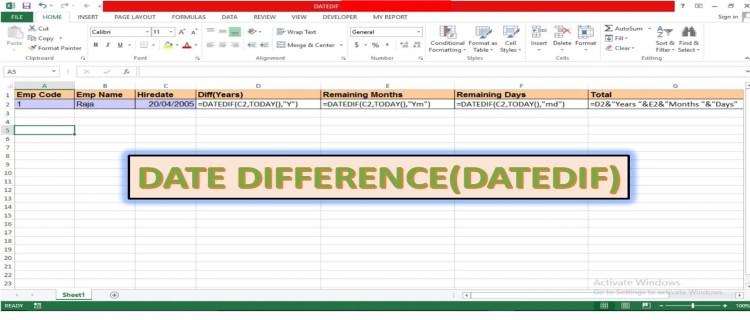
Based on the above Excel spreadsheet, the following DATEDIF examples will return:
=DATEDIF(C2, TODAY(), “Y”)
Result: 16(difference as total number of YEARS)
Note- here TODAY() is used as an end date in function argument. It is Excel inbuilt function which returns system date, i.e. current date.
=DATEDIF(C2, TODAY(), “M”)
Result: 191(difference as total number of MONTHS)
=DATEDIF(C2, TODAY(), “D”)
Result: 5828(difference as total number of DAYS)
=DATEDIF(C2, TODAY(), “YM”)
Result: 11(difference as total number of remaining MONTHS after YEARS)
=DATEDIF(C2, TODAY(), “MD”)
Result: 15(difference as total number of remaining DAYS after YEARS)
=DATEDIF(C2, TODAY(), “YD”)
Result: 349(difference as total number of remaining DAYS after years)

Above picture shows how to calculate the differences between two DATES and to calculate Total using & operator. It’s nothing but substitute of Excel CONCATENATE Function.